Have an account?
Showing posts with label Tips dan Trik. Show all posts

Gudang Penyimpanan Online

Membuat backup data di portable hard drive, flash disk, cd atau pun dvd tentu sudah sering dilakukan. Untuk data yang dianggap sangat penting ada baiknya Anda mempertimbangkan untuk menyimpan data tersebut secara online. Dengan menyimpan data secara online Anda dapat mengakses data tersebut dari mana saja tanpa perlu selalu membawa flash disk. Anda juga tidak perlu khawatir kehilangan data karena virus atau pun karena media penyimpan yang rusak.

Berikut ini adalah beberapa situs yang menyediakan layanan penyimpanan data secara online:
1.  Mozy.com
    Mozy.com menawarkan tempat penyimpanan secara online dengan kapasitas 2GB untuk versi gratis. Dengan kapasitas sebesar itu Anda dapat menyimpan 200 file MP3 dan 300 foto. Fitur yang terdapat pada Mozy versi gratis adalah sebagai berikut:
  • Backup data secara otomatis atau berdasarkan jadwal
  • Enkripsi file pada saat proses backup data
  • Akses file dari desktop Windows maupun Macintosh
  • Kapasitas simpan sebesar 2 GB
Jika Anda merasa kapasitas sebesar 2GB tidak cukup Anda dapat melakukan upgrade. Dengan biaya sebesar $ 4.95 per bulan Anda mendapatkan kapasitas yang tidak terbatas.

2.  ZumoDrive.com
    ZumoDrive.com menawarkan kapasitas penyimpanan sebesar 1 GB untuk versi gratis. Untuk versi berbayar, ZumoDrive.com menawarkan beberapa pilihan paket yaitu mulai dari $2.99 per bulan untuk kapasitas 10 GB.

3.  ADrive.com
    ADrive.co menawarkan kapasitas penyimpanan yang cukup fantastis, yaitu sampai 50 GB. Lebih dari cukup kalau sekedar buat backup data penting Anda. Untuk versi gratis tidak support koneksi via FTP dan aplikasi desktop.

4.  Humyo.com
    Humyo.com menawarkan kapasitas penyimpanan sebesar 10GB yang dibagi menjadi dua, yaitu 5GB untuk media file dan 5GB lagi untuk non media file. Untuk versi gratis hanya dapat diakses melalui web. Humyo.com merupakan perusahaan yang satu grup dengan perusahaan antivirus TrendMicro sehingga dari segi reputasi tidak perlu diragukan lagi.

Sumber : www.klik-kanan.com

Membuat Teks Berjalan di Addres-bar

Posting ini saya persembahkan buat para blogger yang pengen nama di address bar blog-nya bisa berjalan/bergerak. Tujuannya agar lebih memikat pengunjung agar blog kita mendapat nilai lebih dari pengunjung, biar menarik maksudnya …

Caranya mudah kok, Cuma tinggal copy paste sesuai instruksi dan rebez !

Caranya begini, silahkan anda copy kode di bawah ini dan letakan tepat di atas kode

(Biar gampang cari kode pake tombol keyboard ctrl+f pada posisi edit HTML di blogspot).

Megubah Tampilan Desktop Menjadi 3 Dimaensi


Banyak cara untuk membuat tampilan desktop menjadi lebih menarik. Kali ini ada satu software lagi yang cukup menarik, yaitu BumpTop 3D. Dengan menggunakan BumpTop 3D ini Anda dapat mengubah tampilan desktop Anda menjadi 3 dimensi.

Anda dapat melihat contoh tampilannya pada gambar di atas atau pada video di bawah ini:

  Download: BumpTopInstaller.exe

Mempercantik Tampilan Firefox Dengan "Personas"


Personas merupakan Firefox addon yang berfungsi untuk mempermudah Anda dalam mempercantik tampilan browser Firefox. Dengan menggunakan Personas dalam hitungan detik Anda sudah bisa mengganti dengan theme yang Anda sukai.
Anda dapat memilih ribuan theme pada halaman gallery Personas yang dibagi dalam beberapa kategori, misalnya Film & TV, Holiday, Music, Nature, Sport, dll. Kalau Anda tidak menemukan theme yang cocok Anda juga dapat membuatnya sendiri.

Untuk menggunakan Personas caranya cukup mudah. Pertama Anda harus mendownload dan menginstall dulu addonnya, setelah itu Anda tinggal memilih theme yang Anda sukai.
Jika Anda ingin mengganti theme, caranya klik icon Personas yang ada di pojok kiri bawah browser Firefox.

Windows 7 Boot Screen for Windows XP

Now its turn of "Boot Screen". Windows 7 contains a new boot screen which shows "Starting Windows..." text along with a glassy progressbar in the middle.
I have tried to create a similar boot screen "VistaVG Boot Screen" for Windows XP.

It looks similar to Windows 7 boot screen. You can download it from following link:
Extract the ZIP file and you'll get following 2 files:
  • NToskrnl.exe
  • VistaVG Seven Boot Screen.tbs
You can use any of the 2 files to enjoy the new boot screen.
If you want to use "NToskrnl.exe" file, then you'll need to replace existing "NToskrnl.exe" file present in "%windir%\System32" folder with this new one. You can use "Replacer" to replace the files which you can find in our "Downloads" section.
Or if you want to use the second file "VistaVG Seven Boot Screen.tbs", then you'll need Tuneup Utilities to apply it which is very safe.
UPDATE: Windows Vista users can also enjoy the new Windows 7 boot screen. Visit this link.

How to solve "NTLDR is missing" Problem

Issue : NTLDR is missing


Related Errors :
  • Below are the full error messages that may be seen when the computer is booting.
  • NTLDR is Missing
    Press any key to restart
  • Boot: Couldn't find NTLDR
    Please insert another disk
  • NTLDR is missing
    Press Ctrl Alt Del to Restart

Causes:

  1. Computer is booting from a non-bootable source.
  2. Computer hard disk drive is not properly setup in BIOS.
  3. Corrupt NTLDR and/or NTDETECT.COM file.
  4. Misconfiguration with the boot.ini file.
  5. Attempting to upgrade from a Windows 95, 98, or ME computer that is using FAT32.
  6. New hard disk drive being added.
  7. Corrupt boot sector / master boot record.
  8. Seriously corrupted version of Windows 2000 or Windows XP.
  9. Loose or Faulty IDE/EIDE hard disk drive cable.
  10. Failing to enable USB keyboard support in the BIOS.


Save Bandwith Quota Limited


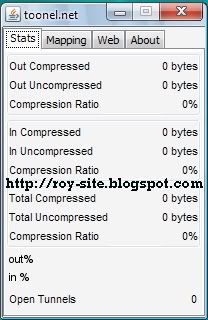
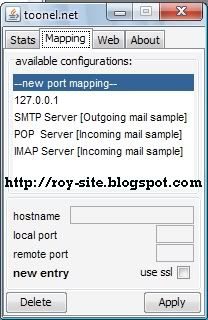
For those of you who subscribe to the Internet with the quota system (limited) it would be trying to save bandwidth usage quota owned. Way is often done to save bandwidth is to disable images, java, audio / sound, SVG animation on every browser used. But what if the facilities required, certainly not to re-activate it? There is another way that can be used to menhemat bandwidth, the compression system. With this system, each web page you visit will be compressed before displayed in the browser. This bandwidth-saving service toonel.net name.

In order to use this application, first have to install JAVA on your computer, please download here, while for toonel.net applications can be downloaded here. After the application is installed on your computer Java, toonel.net then run the application you've downloaded. Do not forget to change the browser's connection to the proxy manually, then fill the HTTP proxy to 127.0.01 and Port = 8080 Also keep in mind every time you browse the internet do not forget to run the application first Toonel.

How to add or Change Favicon in Blogger Blog?

Favicon is a small icon shown next to site URL in the address bar. In Blogger, by default orange colored blogger icon is shown as favicon. You can make your blog stand out by using your own customized icon

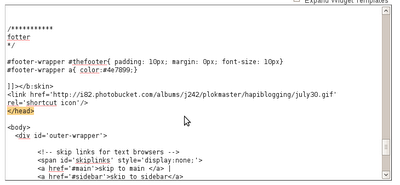
Adding a favicon in blogger is very easy, as easy as 1-2-3. You just to need the basic knowledge of changing your blogger template. All you need to do is to insert the following link code below in your template, between the head tag.


The Link Code


The Image URL
The image url is the web address of the image you are going to use as your favicon. It may either be in the following format: jpg, gif, or png. Since it is a web address, you need to upload it on a photo hosting site, Photobucket. Replace the {image url} with your exact image url.


The Head Tag
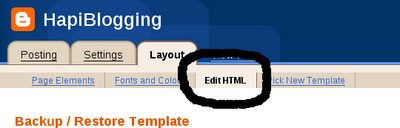
The head tag begins with this tag: and ends with this tag: . Go to Layout->Edit HTML.

Locate for end head tag () and paste your link code above it, then save it.


After saving, open your blog and you'll see the result. Is it really easy for you?
Good Luck...

Hemat Bandwith dengan Opera Mini


Buat Anda yang sering melakukan browsing menggunakan akses internet dengan sistem pembayaran volume base, maka melakukan browsing tentu harus lebih jeli. Bila tidak maka bandwith akan cepat habis. 
Kebanyakan browser yang digunakan PC atau Laptop lebih boros bandwith ketimbang bila menggunakan browser pada ponsel seperti Opera Mini. Lantas bagaimana bila mnggunakan Opera Mini pada PC atau notebook?

Untuk menggunakan Opera Mini pada PC, kita membutuhkan persyaratan seperti ini : 
  1. Pastikan PC atau Laptop anda terinstal sistem operasi yang support JRE. Bila belum terinstal, Anda bisa mendownloadnya  disini. 
  2. Pastkan anda punya koneksi internet, bisa nebeng atau pakai ponsel sebagai modem GPRS/EDGE. 
  3. Download MicroEmulator. 
  4. OperaMini.

Untuk download ebook kengkapnya klik disini.
Selamat Mencoba..

Mengubah Windows XP menjadi Windows 7

Beberapa waktu yang lalu Windows 7 Beta telah dirilis. Jutaan orang di seluruh dunia langsung segera ikut mencoba versi Windows yang baru ini. Ada juga yang masih setia dengan versi lama Windows, misalnya Windows XP. Bagi Anda yang tetap ingin menggunakan Windows XP tetapi ingin mencoba segala keindahan Windows 7, artikel ini pasti berguna untuk Anda. Di sini akan dijelaskan bagaimana cara mengubah theme, icon, boot screen, welcome screen, dll pada Windows XP menjadi seperti Windows 7.

Perubahan yang dilakukan menggunakan software bernama Seven Remix versi 2.2, dapat didownload DISINI. Setelah selesai di download, double click installer seven remix untuk melakukan instalasi. Berikut screenshot instalasi.


IP